

You will learn how to export and import a WordPress website when you need to make changes to your site.
Log in to WordPress
First of all, you must access your WordPress site where you have installed the website you wish to export and import.
Go directly to the tab called “Tools” and click on “Export.” This will take you to the WordPress export tab.
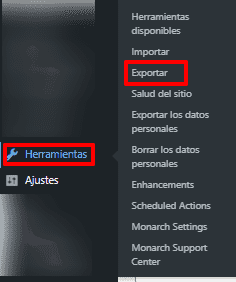
You must choose the content or content you wish to export.
If you wish to select all the content, select it and then click on “download export file”.
However, if you don't want all the content on the website, and only need some entries or pages, you must select what you need one by one and download it.
I usually like to export them one by one to avoid weird WordPress errors.

Once you have downloaded the file, go directly to “Tools” and click on “Import”.
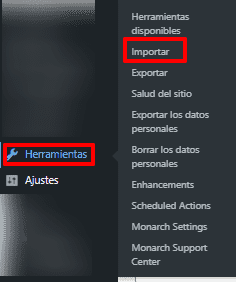
This will open the WordPress import tab, and you have to scroll down to the bottom. Go to the option that says WordPress, click on "install now" if you don't have it installed. After you have it installed correctly, click directly on "Run the importer".
It will give you the option to select the file you had previously downloaded.
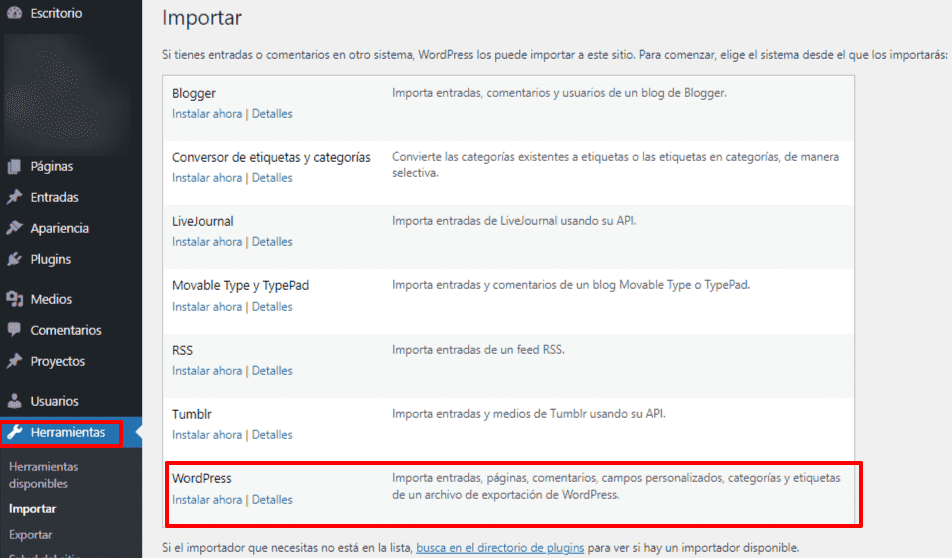
It will give you the option to select the file you downloaded earlier. You must click on “Upload file and import” or sometimes it says “Load file and import”, it's the same thing.
Then it will take you to the option so you can import and choose an author for the content you have imported.
There are two options, one to create a new user and another to select one of the existing users in your WordPress.
You should choose the option that best suits your situation. Once finished, select "import attachment" and click "send".
The next screen will confirm that your content has been imported correctly.
For the rest of the content, you must repeat the same options and select the content you actually want to import.
Don't forget to check the changes you've made!
Load Divi Theme

Once everything mentioned above has been completed, it's time to upload the Divi Theme to our WordPress site so that the entire website or webpage actually takes on its design.
It's time to enter elegantthemes to download the Divi theme within the themes and Premium Plugin that I have subscribed to.
Before continuing, in order to use this globally valuable theme, you must have an annual plan from Elegant Themes, the company that owns the Divi theme.
Go directly into https://www.elegantthemes.com/ and log in to your account with your member name and password.
Once logged in as a registered Member, go directly to Divi and download the Theme.
Once the download is complete, return to WordPress and go directly to the "Appearance" tab, "Themes", you will see the option to upload the theme, drag it to the select file section and install it.
Then, check out their website and you'll see the big change.
Don't forget, if you wish to purchase the Divi Theme or the Elegant Themes annual subscription, Use my affiliate link. If you do, I'll only receive an affiliate commission. This won't affect the price for you; in fact, it will benefit you.
Get the Divi Theme Now

Watch the full video of “How to export and import a WordPress website and load a Divi theme”
If you need help with a specific Digital Solution, you can Contact us for advice.
Share this post and leave a comment to help us help more people
At Cleefcompany, we wish you much success, prosperity, and health!









 Spanish
 English
0 Comments