
Have you ever wondered how companies manage to get their ads to appear in your Facebook feed at the right time?
The answer lies in the Facebook Ads Manager.
What is Facebook Ads Manager?
Facebook's Ads Manager is a powerful tool that allows businesses to create, manage, and optimize advertising campaigns effectively.
Its importance lies in the ability to reach a specific audience with personalized ads that can significantly increase a company's visibility and conversions.
In this article, we'll explain in detail how to set up and use this tool, as well as its advantages and disadvantages, to help you make the most of your Facebook advertising efforts.
Advantages and disadvantages of the Facebook Ads Manager
Advantages of Facebook Ads Manager
1. Precise Segmentation:
One of the biggest advantages is the ability to segment your audience with impressive accuracy.
You can target people based on their specific location, interests, behaviors, and demographics.
2. Detailed Analysis:
It offers a detailed analysis of your ad metrics, allowing you to understand what's working and what isn't, and adjust accordingly. your campaigns consequently.
3. Budget Flexibility:
You can start with a small budget and gradually increase it as you see results.
Additionally, you can set daily or total budgets to have precise control over your spending.
4. Variety of Ad Formats:
From image and video ads to carousel ads and collections, the options are vast and allow you to be creative in how you present your message.
Disadvantages of Facebook Ads Manager
1. Learning Curve:
Although it is a powerful tool, it can be complex for beginners.
It takes time and practice to master all its functions and settings.
2. Frequent Policy Changes:
Facebook updates its advertising policies regularly, which can result in rejected ads or the need for constant adjustments.
3. High Competition:
Given the popularity of Facebook Ads, There is a lot of competition, which can increase the cost per click (CPC) and make it difficult for your ad to stand out among so many others.
Account settings in the Facebook Ads Manager
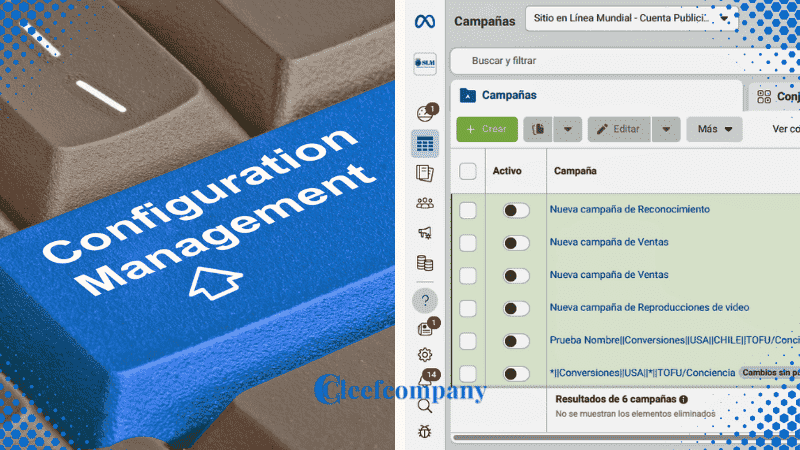
To get the most out of Facebook Ads Manager, it's essential to set up your account correctly.
Next, I will guide you step by step through this essential process.
Create a Facebook Business Manager account in the Facebook Ads Manager
The first step is to create a Facebook Business Manager account.
This is the control center where you will manage all your business activities on Facebook.
Follow these steps:
1. Visit the Facebook Business website:
Go to business.facebook.com and click on “Create new account” and then click on “Sign up with Facebook”.
2. Provide your information:
Complete the requested fields with your name, business email address, and all related information from the registration form.
3. Check your email:
Facebook will send a verification email.
Click on the provided link to verify your email address.
4. Set up your business:
Once verified, you can enter more details about your company, such as address, phone number, and website.
This process ensures that your account is properly set up and ready to manage your advertising campaigns.
Connect your Facebook Page to your Business Manager account in Facebook Ads Manager
Once your Business Manager account is ready, the next step is to connect your Facebook page.
This allows all your business activities to be centralized and easy to manage.
Follow these steps:
1. Access the Business Manager:
Log in to your Business Manager account and select “Business Settings”.
2. Add your page:
In the “Accounts” section, click on “Pages” and then on “Add”.
Here, you will have three options:
Add a page: If you are already the page owner.
Request access to a page: If you want to manage a page that is not yours.
Create a new page: If you don't already have a Facebook page.
3. Select the appropriate option:
If you already have a page, select “Add a page”, enter your page name or URL and follow the instructions to link it to your Business Manager.
Connecting your page ensures that you can access and manage all your Facebook properties from one place.
Add users and assign roles in the Facebook Ads Manager
It is essential to add the Business Manager to your team and assign them specific roles according to their responsibilities.
This ensures effective collaboration and that each member has access to the functions they need.
Follow these steps:
1. Access the business settings:
From the Business Manager panel, go to “Business Settings”.
2. Select “People”:
In the “Users” section, select “People” and click “Add”.
3. Enter your team's email addresses:
Add the email addresses of the people you want to add and select their roles.
The available roles in Facebook Ads Manager include:
Administrator: Has full access to the account and can manage everything.
Editor: You can create and edit ads, but you don't have full access to business settings.
Analyst: You can view performance reports and data, but you cannot make changes to the ads.
4. Assign assets:
Once added, it assigns to each user the assets (pages, ad accounts, etc.) that they can manage.
5. Send invitations:
Users will receive an email invitation to join the Business Manager.
They will need to accept the invitation to begin collaborating.
Adding users and assigning roles ensures that everyone on your team can contribute effectively and access the tools they need to do their job.
Navigation in the Facebook Ads Manager
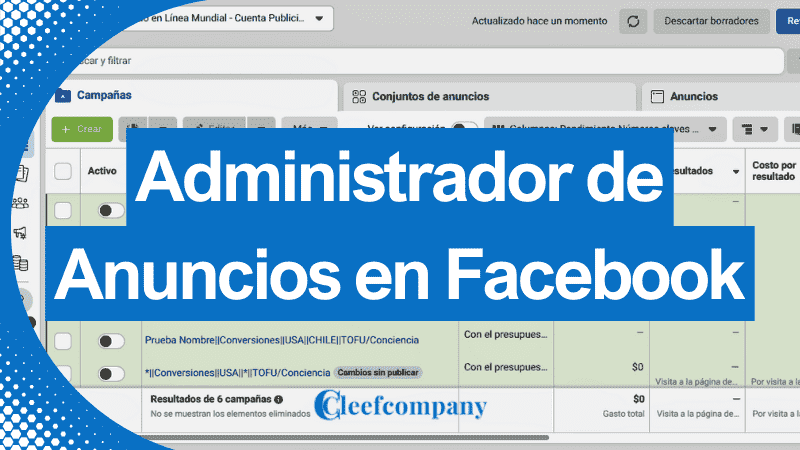
For manage your campaigns To effectively, it is essential to become familiar with the Facebook Ads Manager interface.
Here we explain how to navigate the control panel and its different sections.
Overview of the control panel in the Facebook Ads Manager
The Ads Manager dashboard is the heart of your advertising management on Facebook.
Here you can monitor and manage all your campaigns in one place.
Below, we explain the main areas of the control panel:
1. Account Summary:
In this section, you'll get a quick overview of your active campaigns, overall performance, and key metrics such as total spend, impressions, and reach.
2. Campaign view:
Here you can see all your current campaigns, their status (active, paused, completed), and a snapshot of their performance.
3. Alerts and notifications:
Facebook will notify you about any problems with your ads, such as rejections or billing errors, so you can address them quickly.
Understanding the control panel well will give you a clear view of how your campaigns are performing and allow you to make informed decisions.
Exploring the different tabs and sections in the Facebook Ads Manager
The Facebook Ads Manager is divided into several tabs and sections that allow you to manage every aspect of your advertising campaigns.
Below, we detail each of these sections:
1. Campaigns:
This is where campaigns are created and managed.
You can view the overall performance of each campaign and adjust settings such as budget and schedule.
2. Ad sets:
This tab allows you to manage the different ad sets within each campaign.
You can define the audience, ad placement, and specific budget for each ad set.
3. Advertisements:
In this section, you can view and edit each individual listing.
This is where you can adjust the content, images, videos, and calls to action of your ads.
4. Hearings:
Manage your custom, lookalike, and saved audiences.
You can create new audiences based on specific criteria and see how they are segmented.
5. Reports:
Generate detailed reports on the performance of your campaigns.
You can customize the reports to see the metrics that interest you most.
6. Billing:
Review and manage billing information, including payment methods, payment history, and quotes.
Exploring these sections will allow you to manage and optimize your campaigns efficiently.
Customizing the Facebook Ads Manager view
One of the advantages of Facebook's Ads Manager is its customization capabilities.
Adjust the Ads Manager view to suit your needs and preferences.
Here's how to do it:
1. Select columns:
You can choose which columns to display in your campaigns, ad sets, and ads view.
Select metrics that are relevant to your goals, such as cost per click (CPC), return on investment (ROI), and conversion rate.
2. Save custom views:
If you need to view certain metrics frequently, save your column configuration as a custom view.
This will allow you to quickly access the information you need without having to adjust the columns each time.
3. Organize the information:
Drag and drop the columns to arrange them in the order you prefer.
This will help you visualize the data more clearly and efficiently.
4. Filters and searches:
Use filters and the search bar to quickly find specific campaigns, ad sets, or ads.
You can filter by status, date, performance, and more.
5. Export reports:
If you need to share information with your team or analyze the data in depth, you can export the reports in formats such as Excel or CSV.
Customizing your view in Ads Manager will allow you to work more efficiently and focus on the metrics that really matter for your advertising goals.
Familiarizing yourself with these tools and settings will not only save you time, but will also allow you to manage your campaigns more effectively and accurately.
Do you have any other questions about using Facebook Ads Manager? Leave your questions in the comments!
Creating ads in the Facebook Ads Manager
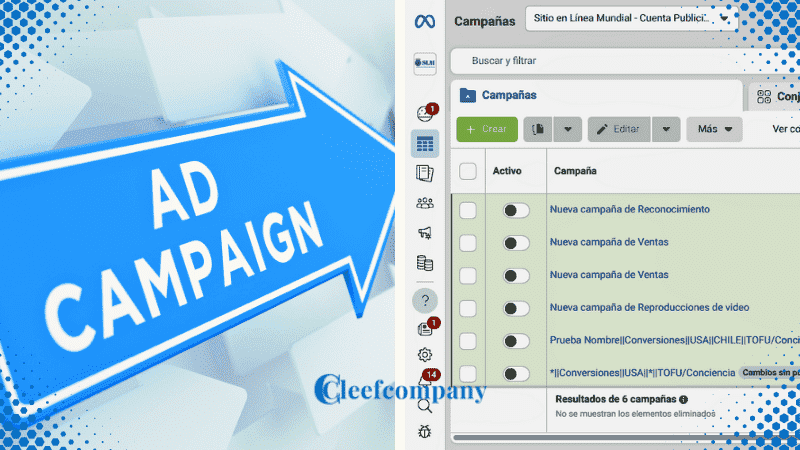
Creating effective Facebook ads is a process that involves several important steps, from choosing the type of campaign to designing the ads.
Below, we explain each of these steps in detail so you can maximize the impact of your ads.
Types of Facebook Ads Campaigns or Objectives in the Facebook Ads Manager
Types of Facebook Ads Campaigns or Objectives
Facebook offers several types of advertising campaigns, each designed to achieve specific goals.
Here we detail the main types of campaigns available:
1. Recognition Campaigns
Objective: To increase the visibility and recognition of your brand.
Examples:
Brand recognition: Targeted at people who are likely to remember your ad.
Reach: Show your ad to the maximum number of people within your target audience.
These campaigns are designed to increase awareness and familiarity of your brand among your target audience.
The main goal is for more people to recognize your brand and know what it offers.
Using branding strategies and clear messages, these campaigns seek to leave a lasting impression on consumers' minds about your brand and what it stands for.
2. Traffic Campaigns
Objective: To drive qualified traffic to your website or a specific page.
Examples:
Traffic: Bringing more people to your website or application.
Using persuasive ads and compelling calls to action, these campaigns aim to attract users interested in your offer, products, or services to your website.
You can use goals such as link clicks or website visits to optimize your campaigns and measure their effectiveness in terms of traffic generated.
3. Interaction Campaigns
Objective: To encourage active interaction from your audience with your content, posts, or page. social networks.
Examples:
Interaction: Increase interactions with your posts or page.
The goal is to generate engagement, comments, shares, and likes on your posts to increase visibility and commitment to your brand.
You can use goals such as post interaction, comments, or shares to optimize your campaigns and measure the level of engagement achieved.
4. Lead Generation Campaigns
Objective: To attract new potential customers and increase your contact database.
Examples:
Lead generation: Collecting contact information from interested people.
Using lead generation strategies and contact forms integrated into the ads, these campaigns seek to collect information from potential customers interested in your products or services.
You can use objectives such as lead generation to optimize your campaigns and measure performance in terms of leads generated.
5. App Promotion Campaigns
Objective: To promote and increase downloads of a mobile application.
Examples:
App Installation: Promote the download of your application.
Using ads specifically designed to promote apps, these campaigns aim to reach mobile users interested in your app and motivate them to download it.
You can use goals such as app installs to optimize your campaigns and measure success in terms of downloads made.
6. Conversion Campaigns
Objective: To encourage people to complete a specific action, such as making a purchase.
Examples:
Conversions: Encouraging people to take valuable actions on your website.
Catalog Sales: Show products from your catalog to interested people.
Traffic in the business: Attracting more people to your physical store.
These campaigns are focused on driving specific actions on your website that lead to sales or conversions.
Using persuasive strategies and effective calls to action, these campaigns aim to convert visitors into customers and increase sales of your products or services.
Setting up the ad set in the Ads Manager on Facebook
Setting up your ad set is a crucial step that determines who will see your ads, how much you would spend, and when they will be shown.
Here's how to set it up step by step:
1. Define your audience:
Demographic data: Select criteria such as age, gender, and location.
Interests and behaviors: Target your ads to people with specific interests and behaviors related to your product or service.
Custom and lookalike audiences: Use custom audiences based on data from current customers and lookalike audiences to find new potential customers.
2. Establish the budget:
Daily or total budget: Decide how much you are willing to spend daily or in total for the duration of the campaign.
Cost control: Set a maximum spending limit to ensure you don't exceed your budget.
3. Configure the calendar:
Start and end dates: Select when your campaign will begin and end.
Ad scheduling: Choose to show your ads at specific times when your audience is most active.
Designing and creating effective ads in the Facebook Ads Manager
Creating engaging and effective ads is essential to capturing your audience's attention and motivating them to take action.
Here's how to design ads that achieve these goals:
1. Choose the ad format:
Image: Use high-quality images that are relevant and attractive.
Video: Create impactful videos that tell a story and capture attention.
Carousel: Displays multiple images or videos in a single ad, ideal for highlighting several products or features.
Collection: Combines images and videos in an immersive format that makes it easy to buy directly from the ad.
2. Write the text of the advertisement:
Catchy headlines: Create clear and concise headlines that immediately grab attention.
Persuasive description: Write detailed descriptions that highlight the benefits of your product or service.
Call to action (CTA): Include a clear and direct CTA, such as "Buy now," "Learn more," or "Sign up today.".
3. Select high-quality images and videos:
Visual relevance: Make sure the images and videos are relevant to your product and appealing to your audience.
Format and resolution: Use the format and resolution recommended by Facebook to ensure your ads look good on all devices.
4. Test and optimize:
A/B testing: Run A/B tests with different versions of your ad to see which one performs best.
Monitor performance: Use Facebook metrics to monitor the performance of your ads and make adjustments as needed.
Creating effective ads not only increases the likelihood of interaction and conversion, but also improves the return on investment of your Facebook advertising campaigns.
Would you like to learn more about designing ads that truly resonate with your audience? Leave your questions in the comments!
Audience segmentation in Facebook Ads Manager
One of the most powerful features of Facebook's Ads Manager is its ability to precisely target audiences.
Proper targeting ensures that your ads reach the people who are most likely to be interested in your product or service.
Here we explain how to use different segmentation methods to maximize the effectiveness of your campaigns.
Using demographic data with Facebook Ads Manager
Demographic data is essential for targeting your ads to the most relevant people.
To the segment your audience demographically, You can ensure that your ads are shown to the individuals most likely to become customers.
Here's how to do it:
1. Age:
Select specific age ranges: If you sell products for teenagers, focus on ages 13 to 19.
For luxury products, you could focus on people aged 30 and over.
Adjust according to the product: Think about who your ideal client and adjust the age range accordingly.
2. Gender:
Target your ads by gender: If your product is specific to men or women, make sure to select the corresponding gender.
Mixed segmentation: For unisex products, consider splitting your budget to see which gender responds best.
3. Location:
Geographic location: You can segment by country, state, city, or even postal code.
Local targeting: If you have a physical store, target your ads to people who live near your location.
4. Marital status:
Relevance of marital status: Some products may be more attractive to single, married, or people in a relationship.
Life events: Consider events such as newlyweds, newly engaged, or new families for specific products.
Interest and behavior targeting in Facebook Ads Manager
Leveraging segmentation by interests and behaviors allows you to reach people who have shown interest in topics related to your product or service.
Here's how to do it:
1. Interests:
Select relevant interests: Choose interests that align with your product.
For example, if you sell gym equipment, select interests such as fitness, nutrition, and training.
Detailed interests: Facebook allows you to choose very specific interests that can help refine your audience.
2. Behaviors:
Buying behaviors: Target people who have shown buying behaviors online or in stores.
Travel: If your product is relevant to travelers, you can target people who travel frequently.
3. Life events:
Recent events: Target your ads to people who have recently experienced significant events, such as moving, births, or marriages.
Celebrations: Segment people who are about to celebrate a birthday or anniversary.
Using custom and lookalike audiences in Facebook Ads Manager
Creating custom audiences and lookalike audiences is an advanced strategy that allows you to reach people who have already shown interest in your business and those who have behaviors similar to your best customers.
Here's how to use these audiences effectively:
1. Custom Audiences:
Customer lists: Upload a list of email addresses or phone numbers of your current customers to create a custom audience.
Interaction with your website: Use the Facebook Pixel to create audiences based on people who have visited your website or specific pages.
Social media interaction: Create audiences based on people who have interacted with your Facebook page or Instagram account.
2. Similar audiences:
Creating lookalike audiences: Use your custom audiences to find new people who share characteristics and behaviors with your best customers.
Similarity settings: You can adjust the similarity level to find broader or more specific audiences, depending on your needs.
3. Advanced segmentation:
Combine audiences: Mix different segmentation criteria to create more precise and specific audiences.
Exclusions: Exclude certain audiences from your campaigns to avoid redundancies and maximize budget efficiency.
Segmenting your audience effectively is crucial to ensuring your ads reach the right people at the right time.
By using demographics, interests, behaviors, and custom and lookalike audiences, you can optimize your campaigns for the best possible results.
Would you like to learn more about a specific segmentation technique? Leave your questions in the comments!
Budgeting and scheduling ads with the Facebook Ads Manager
Properly managing your ad budget and scheduling is essential to maximizing the performance of your Facebook campaigns.
Below, we explain how to define your budget, set a publishing schedule, and optimize your budget during the campaign.
Define the campaign budget within the Facebook Ads Manager
Setting an appropriate budget is the first step to ensuring your advertising campaign is effective without exceeding your financial resources.
Here's how to do it:
1. Determine your total budget:
Resource analysis: Evaluate how much money you have available to spend on advertising without affecting other areas of your business.
Campaign objectives: Define how much you are willing to spend to achieve your specific goals, such as increasing sales or generating more leads.
2. Choose between daily or total budget:
Daily budget: Ideal for keeping track of how much you spend each day.
This is useful if you want to spread your spending evenly throughout the campaign.
Total Budget: Sets a fixed amount to be spent throughout the entire campaign, allowing Facebook to optimize spending to achieve the best possible results within the defined period.
3. Allocate budget to campaigns and ad sets:
Budget allocation: Decide how much to allocate to each campaign and ad set based on its importance and return potential.
Prioritization: Focus on campaigns that have proven to be most effective at maximizing your ROI.
Set the publishing schedule in the Ads Manager on Facebook
Choosing the right dates and times to display your ads can have a big impact on their effectiveness.
Here's how to set up an optimal publishing schedule:
1. Select the start and end dates:
Campaign duration: Decide how long you want your campaign to last.
Short campaigns can create a sense of urgency, while long campaigns can build awareness over time.
Events and seasons: Consider important dates, events, and seasons relevant to your industry.
2. Choose the publication times:
Activity analysis: Use Facebook Insights data to identify when your audience is most active on the platform.
Ad scheduling: Schedule your ads to be shown during peak activity times for your audience.
3. Calendar settings:
Ad frequency: Make sure your ads aren't shown too frequently to the same audience to avoid ad fatigue.
Continuous optimization: Adjust the schedule based on campaign performance.
If you notice that certain days or times produce better results, focus your budget on those times.
Budget optimization and adjustments during the campaign within the Facebook Ads Manager
Monitoring and adjusting your budget throughout the campaign is crucial to maximizing its effectiveness.
Here's how to do it:
1. Monitor ad performance:
Metrics review: Regularly review key metrics such as CTR, CPC, and ROI to understand how your ads are performing.
Problem identification: Quickly detect ads that aren't working well and make necessary adjustments.
2. Adjust the budget according to performance:
Budget reallocation: If certain ads or ad sets are performing better, consider reallocating more budget to them.
Pause ineffective ads: Don't hesitate to pause or stop ads that aren't generating the expected results to avoid wasting budget.
3. Continuous optimization:
A/B Testing: Run A/B tests to identify which elements of your ads (such as text, images, or calls to action) are performing best and optimize accordingly.
Targeting adjustments: If you notice that certain segments of your audience respond better to your ads, adjust the targeting to focus your budget on those groups.
Properly managing your ad budget and scheduling is essential to maximizing its effectiveness and ensuring you're getting the best possible return on your advertising investment.
Would you like to learn more about how to optimize your budget for specific campaigns? Leave your questions in the comments!
Measuring results in the Facebook Ads Manager
Measuring and analyzing the results of your Facebook advertising campaigns is essential to understanding their effectiveness and making the necessary adjustments to optimize them.
Below, we explain in detail how to interpret key metrics, use tracking pixels, and evaluate the ROI of your campaigns.
Interpreting key metrics such as reach, impressions, and CTR in Facebook Ads Manager
Key metrics provide valuable information about the performance of your ads.
Here's how to interpret these metrics to improve your campaigns:
1. Scope:
Definition: Reach refers to the number of unique people who have seen your ad.
Interpretation: A high reach indicates that your ads are reaching a wide audience.
If your goal is to increase brand awareness, this metric is crucial.
2. Impressions:
Definition: Impressions represent the total number of times your ad has been shown, including multiple views by the same person.
Interpretation: A high number of impressions suggests that your ad is being viewed frequently.
It's important to compare impressions with reach to understand how often your audience sees your ad.
3. CTR (click-through rate):
Definition: CTR is the percentage of people who clicked on your ad after viewing it.
Interpretation: A high CTR indicates that your ad is relevant and engaging for your audience.
If the CTR is low, you may need to review the ad content or audience targeting.
Using tracking pixels for conversion analysis in Facebook Ads Manager
Tracking pixels are essential tools for measuring conversions and understanding how users interact with your ads.
Here's how to implement and use them:
1. Implementation of the Facebook pixel:
Definition: A Facebook pixel is a piece of code that is inserted into your website to track visitor actions.
Setup: Access the pixels section in the Ads Manager on Facebook, create a new pixel, and follow the instructions to add the code to your website.
2. Conversion tracking:
Types of conversions: You can track different types of conversions, such as purchases, registrations, downloads, and more.
Accurate data: The Facebook pixel provides you with accurate data on how users interact with your website after viewing or clicking on your ads.
3. Data-driven optimization:
Analyze user behavior: Use pixel data to better understand user behavior and optimize your ads accordingly.
Improved targeting: Adjust your ad targeting based on conversions to reach the most relevant audience.
Evaluating ROI and making adjustments to improve performance in Facebook Ads Manager
Evaluating return on investment (ROI) is crucial to determining the effectiveness of your campaigns and making adjustments to improve their performance.
Here's how to do it:
1. Calculating ROI:
Definition: ROI measures the profit obtained in relation to the cost of the advertising campaign.
Formula: ROI = (Investment Gains) / Investment x 100.
Calculate your profits generated by the campaign and subtract the total cost of the campaign, then divide the result by the cost and multiply by 100 to get the ROI percentage.
2. Strategy Analysis:
Identify successful campaigns: Review which campaigns have generated the highest ROI and analyze which strategies work best.
Applying successful strategies: Apply the tactics and approaches of successful campaigns to future campaigns to replicate success.
3. Continuous adjustments:
Constant monitoring: Keep a constant eye on the performance of your campaigns and adjust budget, targeting, and content as needed.
Testing and optimization: Conduct A/B tests to compare different elements of your ads and continuously optimize to improve performance.
Measure and analyze the results of your campaigns It allows you to make informed decisions and adjust your strategies to maximize the impact of your ads.
Do you have any specific questions about how to measure the performance of your Facebook campaigns? Leave your questions in the comments!
Advanced strategies in Facebook Ads Manager
To take your advertising campaigns to the next level, it's crucial to implement advanced strategies that allow you to optimize performance and achieve your goals more effectively.
Next, we explain in detail how to use the retargeting and remarketing, conduct A/B testing and leverage integration with CRM tools and external data analytics.
Retargeting and remarketing using Facebook Ads Manager
Retargeting and remarketing are techniques that allow you to re-engage users who have interacted with your website but have not completed a conversion.
These strategies are essential to maximizing the impact of your campaigns and converting visitors into customers.
Here's how to do it:
1. Configure the retargeting pixel:
Definition: A retargeting pixel is a small piece of code that is added to your website to track visitors.
Installation: Make sure you have the Facebook pixel installed on your website to be able to collect user behavior data.
2. Create retargeting audiences:
Audiences based on visits to specific pages: Create custom audiences of people who have visited key pages on your website, such as the product page or the shopping cart page.
Audiences based on specific actions: Target users who have performed specific actions, such as adding products to the cart but not completing the purchase.
3. Design personalized ads:
Dynamic adsUse dynamic ads to show specific products that users have viewed on your website.
Personalized messages: Create messages that address common objections or offer incentives, such as discounts, to motivate users to return and complete the purchase.
4. Continuous optimization:
Performance monitoring: Track the performance of your retargeting ads and adjust as needed.
Data-driven adjustments: Use the data collected to improve the targeting and personalization of your ads.
A/B testing for ad optimization with Facebook Ads Manager
A/B testing is a powerful tool for comparing different versions of your ads and determining which one performs best.
Below, we explain how to perform A/B testing effectively:
1. Define the elements to be tested:
Creatives: Try different images, videos, or graphics to see which one appeals most to your audience.
Texts: Experiment with different headings, descriptions, and calls to action.
Segmentation: Test different audiences to see which one responds best to your ads.
2. Create trial versions:
Variants: Create two or more versions of your ad, changing only one or two elements at a time to keep the test controlled.
Consistency: Make sure all other variables remain constant to obtain accurate results.
3. Run the test:
Appropriate duration: Run the test for a sufficient period to collect meaningful data.
Representative sample: Make sure the audience sample is large enough to obtain reliable results.
4. Analyze the results:
Key metrics: Analyze metrics such as CTR, CPC, and conversions to determine which ad version performs best.
Informed decisions: Based on the results, implement the winning version and make additional adjustments if necessary.
Integration with CRM tools and external data analysis
Integrating Ads Manager with your CRM and other analytics tools gives you a more complete view of your campaigns and helps you optimize your advertising strategy within Facebook Ads Manager.
Here's how to do it:
1. Connect to your CRM:
Definition: CRM integration allows your customer data and interactions to be synchronized with your advertising campaigns.
Setup: Use Facebook's APIs or third-party integration tools to connect your CRM to Facebook's Ads Manager.
2. Data synchronization:
Custom Audiences: Create custom audiences based on your CRM data, such as current customers, qualified leads, or newsletter subscribers.
Automatic update: Configure automatic data synchronization so you always work with the latest information.
3. Analysis of external data:
Analytics tools: Use tools like Google Analytics, Tableau, or Power BI to analyze data from different sources and get a holistic view of your campaign performance.
Data integration: Combine your Facebook campaign data with other business data to identify trends and optimization opportunities.
4. Insights-based optimization:
Detailed reports: Generate detailed reports that combine data from Facebook and your CRM to gain in-depth insights.
Specific actions: Use these insights to adjust your advertising strategy, improve targeting, and further personalize your ads.
Implementing these advanced strategies will allow you to maximize the impact of your Facebook advertising campaigns and achieve better results.
Would you like to learn more about any of these strategies in particular? Leave your questions in the comments!
Troubleshooting common problems in Facebook Ads Manager
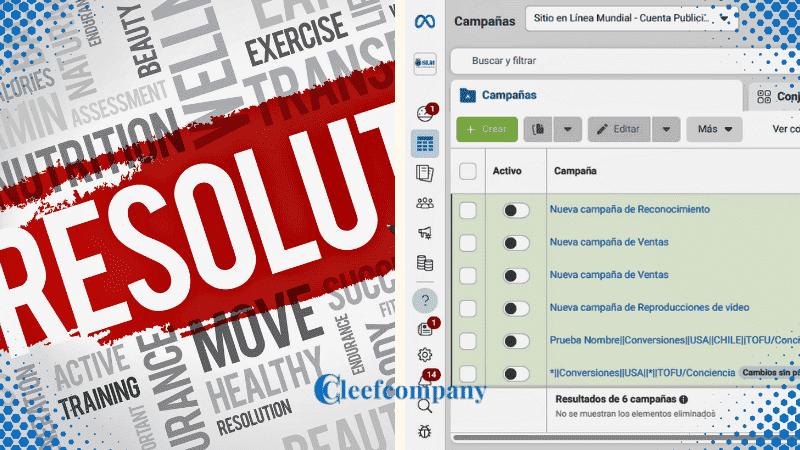
Throughout your Facebook advertising campaigns, you're likely to encounter some challenges.
Knowing the most common problems and how to solve them will help you keep your campaigns in good condition and maximize their effectiveness.
Below, we explain how to handle rejected ads, performance issues, and how to avoid audience burnout.
Rejected ads: causes and solutions you can find within the Facebook Ads Manager
It's frustrating when your ads are rejected, but understanding the causes and knowing how to fix them will allow you to get them up and running again quickly.
Here's how to handle this situation:
1. Review Facebook's advertising policies:
Strict policies: Facebook has strict policies on advertising content that you must follow to avoid rejections.
Sensitive topics: Make sure your ad does not contain prohibited content, such as weapons, drugs, offensive language, or sexually suggestive images.
2. Identify the cause of the rejection:
Facebook notification: Facebook usually provides a specific reason for rejecting an ad.
Read this notification carefully to understand the problem.
Common mistakes: The most common mistakes include inappropriate use of text in images, exaggerated promises, misuse of personal data, and misleading content.
3. Adjust the ad according to the recommendations:
Review and edit: Modify your ad to comply with Facebook's policies.
This may include changing the text, images, or target audience.
Resource consultation: Use Facebook's resources and guides to ensure your ad meets all requirements.
4. Forward for approval:
Final verification: Before resubmitting the ad, review all policies again and make sure that all causes of rejection have been addressed.
Submission: Once you have made the necessary adjustments, submit your ad for review by Facebook.
Ad performance issues detected in Facebook Ads Manager
If your ads aren't performing as expected, it's crucial to identify the causes and make adjustments to improve results.
Here's how to address performance issues:
1. Analyze the key metrics:
CTR and CPC: Review the CTR (click rate) and CPC (cost per click) to understand if your audience is interacting with your ads.
Conversion rate: Observe the conversion rate to see how many clicks are resulting in desired actions (such as sales or sign-ups).
2. Make adjustments to the audience:
Audience segmentation: Consider adjusting your audience segmentation to target a more relevant audience.
Interests and behaviors: Experiment with different interests and behaviors to find the combination that works best.
3. Optimize the ad design:
Visual creativity: Make sure your images and videos are high quality and attractive.
Ad copy: Review and improve your ad copy to make it clear, concise, and persuasive.
4. Adjust the budget and schedule:
Budget reallocation: If certain ads are performing better, consider reallocating the budget to those ads.
Posting times: Adjust posting times to show your ads when your audience is most active.
Tips to avoid audience burnout when using Facebook Ads Manager
Audience fatigue occurs when people see the same advertisement too many times and lose interest.
Here's how to avoid it:
1. Update creative assets regularly:
New images and videos: Regularly change the images and videos in your ads to keep them fresh and engaging.
Varied messages: Try different messages and calls to action to keep your audience interested.
2. Ad rotation:
Multiple ads: Create several versions of your ad and rotate their use to prevent the audience from getting bored of seeing the same content repeatedly.
Frequency control: Use frequency control options on Facebook to limit how many times a person sees your ad in a given time period.
3. Diversified segmentation:
Expand audience: If possible, expand your audience to reduce the number of times the same group of people see your ad.
Custom Audiences: Use custom and lookalike audiences to target new and relevant people.
4. Monitor and adjust:
Data analysis: Monitor the performance of your ads and make adjustments as needed to maintain the interest of your audience.
Continuous testing: Conduct A/B tests to identify which variations of your ads generate the best results and maintain a constant rotation of content.
Addressing these common problems proactively will allow you to keep your Facebook advertising campaigns effective and profitable.
Have you had any experience with rejected ads or performance issues? Share your experiences and questions in the comments!
Conclusion
Facebook Ads Manager is an essential tool for any business looking to improve its online presence and increase conversions.
Through careful setup, precise segmentation, and continuous optimization, you can maximize the impact of your advertising campaigns.
Don't be afraid to experiment and adjust your strategies to find what works best for your business.
Would you like to learn more about how to optimize your Facebook ads? Leave your questions and comments below!
Frequently Asked Questions about Facebook Ads Manager
What is Facebook Ads Manager?
The Facebook Ads Manager is a tool that allows you to create, manage, and optimize advertising campaigns on the Facebook platform.
How do I create an account on Facebook Business Manager?
Visit the Facebook Business website and follow the instructions to create a free account.
What types of ads can I create on Facebook using Facebook Ads Manager?
You can create image, video, carousel, collection ads, and more.
How can I segment my audience on Facebook using Facebook Ads Manager?
You can segment your audience based on demographics, interests, behaviors, and more.
What is a tracking pixel?
A tracking pixel is a piece of code that is added to your website to track user behavior and measure conversions.
What is A/B testing within Facebook Ads Manager?
It is an experimentation strategy in which two versions of an advertisement are compared to determine which one performs better.
How can I avoid audience burnout?
Keep your ads fresh and up-to-date with new creatives and messaging.
What should I do if my ad is rejected within Facebook Ads Manager?
Review Facebook's advertising policies, adjust your ad according to the recommendations, and resubmit it for approval.
What metrics should I monitor in my campaigns?
You should monitor reach, impressions, CTR, conversions, and ROI, among other key metrics.
How can I improve the performance of my Facebook ads?
Run A/B tests, adjust your targeting, optimize your creatives, and monitor your metrics to make continuous adjustments.







 Spanish
 English
 French
0 Comments