
Have you ever wondered how the ads you see on Facebook seem to know your interests and behaviors?
The answer lies in the Facebook Pixel.
The Facebook Pixel is an analytics tool that allows advertisers to track user activity on their website.
By installing this small snippet of code on your page, you can collect valuable data about how visitors interact with your content, allowing you to optimize your advertising campaigns and increase conversions.
What is the Facebook Pixel?
The Facebook Pixel is an analytics tool that consists of a piece of JavaScript code that is inserted into your website.
This code allows you to track and analyze user actions as they browse your site, providing valuable data about their behavior.
This data is used to optimize your Facebook advertising campaigns, improve audience segmentation, and increase conversions.
Importance of the Pixel in Social Media Marketing Strategy
Why is the Facebook Pixel so crucial to your marketing strategy?
Simply because it provides you with detailed information about the behavior of users who visit your website.
This information is invaluable for creating more effective and personalized ads, maximizing return on investment (ROI), and improving the user experience.
Advantages and disadvantages of the Facebook Pixel

Advantages of the Facebook Pixel
1. Increased Conversion Rate:
By targeting your ads to users who have already shown interest in your product or service, the conversion rates increase significantly.
2. Brand Reinforcement:
The Pixel helps you keep your brand top of mind for users by presenting relevant ads.
3. Customization:
It allows you to create highly personalized ads based on the user's previous behavior on your website.
4. Cost Optimization:
By focusing your efforts on a specific audience that is already familiar with your brand, you can reduce advertising costs.
Disadvantages of the Facebook Pixel
1. Possible User Fatigue:
Repeated exposure to the same advertisements can cause fatigue and generate a negative response.
2. Privacy Concerns:
Some users may feel uncomfortable knowing that their online activities are being tracked.
Facebook Pixel Settings
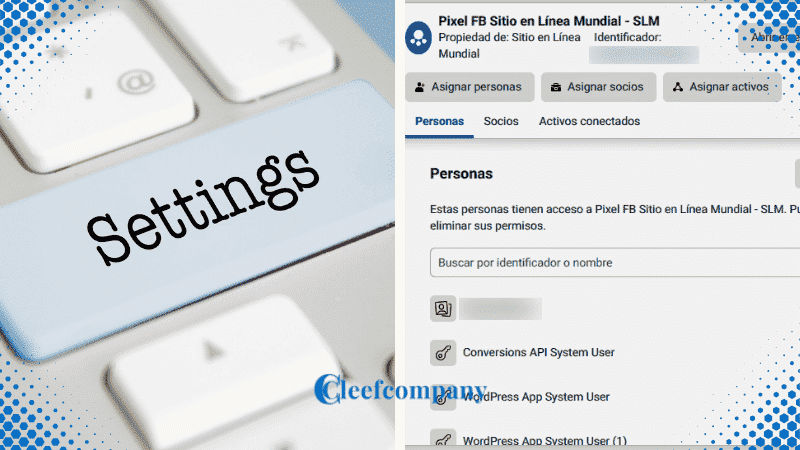
Setting up the Facebook Pixel may seem like a complicated process at first, but with the right steps, you can do it simply and effectively.
Below, I explain in detail how to configure the Facebook Pixel, from creating a Facebook Business Manager account to verifying that it is working correctly.
Create a Facebook Business Manager account
To start using the Facebook Pixel, you first need a Facebook Business Manager account.
This platform is essential for managing all your advertising activities on Facebook in a centralized manner.
1. Access Facebook Business Manager:
Go to the page of Facebook Business Manager and click on “Create a new account”.
2. Provide basic information:
Complete the required fields, such as your business name, your name, and email address.
3. Initial configuration:
Once the account is created, you will need to configure the basic details of your business, such as the Facebook page and the associated advertising account.
4. Add people and roles:
Invite other members of your team to the account and assign them specific roles (administrator, editor, etc.).
Install the Pixel on your website
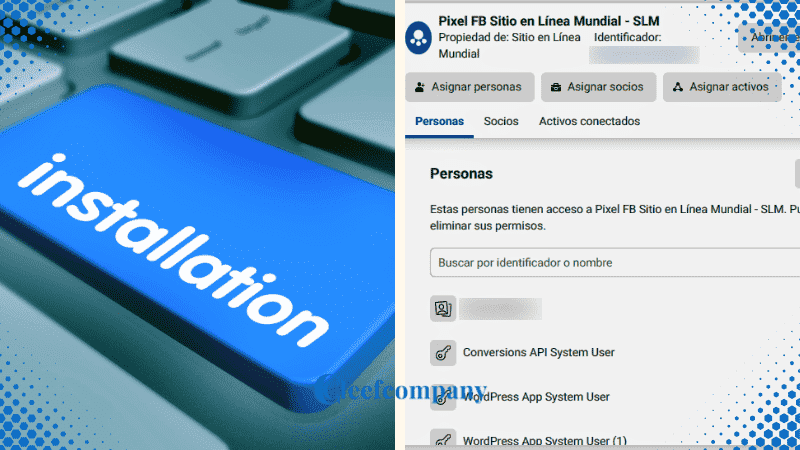
With your Business Manager account set up, the next step is to install the Pixel on your website.
This process involves adding a code snippet to your Web page to begin tracking user behavior.
1. Create a Pixel:
Within your Business Manager account, navigate to the “Pixels” section and click “Add” to create a new Pixel.
Give your Pixel a name and link it to your website.
2. Obtain the Pixel code:
Once the Pixel is created, Facebook will provide you with a specific code.
This code is a snippet of JavaScript that you should add to your website.
3. Insert the code into your website:
Manual:
Copy the Pixel code and paste it into the section “ "of your website.
Make sure it's present on all pages where you want to track activity.
Integration tools:
If you prefer a simpler option, you can use tools like Google Tag Manager.
You just need to add a new tag, paste the Pixel code, and publish it.
4. Configure trace events:
Define the events you want to track, such as "Add to cart", "Complete registration" or "Make purchase".
You can do it manually by inserting additional codes or by using Facebook's automatic settings.
Verification of the correct functioning of the Pixel
After installing the Pixel, it's crucial to make sure it's working properly to ensure the data you collect is accurate.
1. Install Meta Pixel Helper:
This is a Google Chrome extension that helps you check if the Pixel is correctly installed on your website.
2. Check the installation:
Open your website:
Visit your website using Google Chrome.
Use Pixel Helper:
Open the Facebook Pixel Helper extension.
You should see a list of detected pixels on the page.
If the Pixel is installed correctly, you will see a green dot next to its name.
3. Verify the events:
Make sure that all the events you set up (such as page views, button clicks, etc.) are being tracked correctly.
Pixel Helper will show you a list of detected events.
4. Problem solving:
If you find any errors, Pixel Helper will provide specific details to help you troubleshoot common problems, such as poorly formatted code or incorrect Pixel locations.
By following these steps, you will be able to configure the Facebook Pixel correctly, allowing you to take full advantage of its capabilities to optimize your advertising campaigns and improve your results. social networks.
Functions and Capabilities of the Facebook Pixel
The Facebook Pixel is an incredibly versatile tool that offers a variety of features and capabilities to improve your marketing strategies on social media.
Below, I explain in detail how you can make the most of these features.
Conversion tracking
Conversion tracking is one of the most valuable capabilities of the Facebook Pixel.
It allows you to track the key actions users take on your website, providing essential data to evaluate its effectiveness. your advertising campaigns.
1. Definition of conversions:
Conversions are specific actions you want users to take on your website, such as making a purchase, signing up for a newsletter, downloading a resource, or completing a contact form.
2. Implementation of the conversion code:
To track these actions, you must implement the Pixel tracking code on key pages of your website.
For example, the purchase conversion code is placed on the thank you page after a successful purchase.
3. Monitoring and analysis:
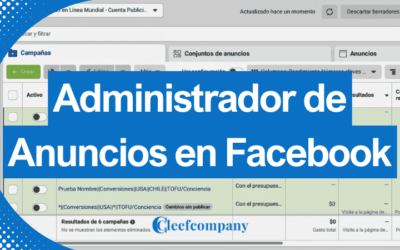
Once implemented, you can use the Ad Manager Facebook to monitor these conversions.
The data collected will help you better understand which ads are generating results and which ones need adjustments.
Creating custom audiences
Creating custom audiences is another powerful feature of the Facebook Pixel.
It allows you to segment your website visitors into specific groups based on their behavior, making it easier to deliver highly personalized ads.
1. Segment identification:
Use Pixel data to identify different audience segments.
For example, you can create audiences based on users who have visited a specific product page, added items to their cart, or abandoned the checkout process.
2. Creating audiences in the Ads Manager:
Go to Facebook Ads Manager and select “Audiences.
Here, you can create a new custom audience based on specific criteria such as page views, website interactions, etc.
3. Ad personalization:
Once these audiences are created, you can design specific ads for each group.
For example, it shows special offers to those who abandoned their cart or promotes complementary products to those who made a recent purchase.
Ad optimization
The Pixel also plays a crucial role in ad optimization.
By collecting data on user actions, it allows Facebook to improve the relevance and effectiveness of your advertising campaigns.
1. Data collection:
The Pixel collects data on how users interact with your ads and your website.
This includes metrics such as clicks, time on site, pages visited, and more.
2. Optimized segmentation:
With this data, Facebook can optimize the targeting of your ads, showing them to people most likely to convert.
This is achieved through machine learning algorithms that analyze behavioral patterns.
3. Real-time campaign adjustments:
Use Ads Manager reports to make real-time adjustments.
For example, if you notice that certain ads are generating more conversions, you can increase their budget or test similar variations to maximize results.
Advanced Strategies with the Facebook Pixel
The Facebook Pixel is not limited to the basic functions mentioned above.
There are advanced strategies you can implement to further leverage its capabilities and take your campaigns to the next level.
Custom event tracking
Custom event tracking allows you to define and track specific actions that are important to your business.
These events can be anything you consider relevant to your marketing goals.
1. Define custom events:
Identify the specific actions you want to track, such as watching a video, downloading a file, or registering for a webinar.
2. Implement the event code:
Add the custom event code to the relevant pages of your website.
Facebook provides detailed guides on how to implement these codes.
3. Monitor and analyze:
Use Ads Manager to monitor these custom events.
The data collected will help you better understand how users interact with your content and optimize your campaigns accordingly.
Standard and custom event configuration
Facebook offers a variety of standard events you can use, but it also lets you set up custom events to better suit your specific needs.
1. Standard events:
They include common actions such as "Add to cart", "Start checkout" and "Complete purchase".
These events are predefined by Facebook and are easy to implement.
2. Customized events:
If the standard events don't meet your needs, you can define your own events.
For example, if you have a mobile app, you could track “Level completed” or “In-app purchase”.
3. Implementation and monitoring:
Place the event code on the relevant pages and use Facebook's tools to monitor its performance.
This will allow you to adjust your strategies in real time.
Pixel usage at different stages of the sales funnel
The Facebook Pixel can be used at all stages of the sales funnel, from lead generation to final conversion.
Here are some ways to leverage the Pixel at each stage:
1. Lead generation:
Use the Pixel to track visits to landing pages and contact forms.
Create custom audiences based on this data and display targeted ads to capture contact information.
2. Lead nurturing:
Track interaction with educational and valuable content, such as blogs, videos, and guides.
Use this data to create retargeting campaigns that continue to educate and nurture leads.
3. Conversion:
It shows specific ads to users who have added products to their cart but have not completed the purchase.
Offer incentives such as discounts or free shipping to encourage conversion.
4. Customer loyalty:
Track repeat purchases and loyalty behaviors.
Build audiences of loyal customers and offer them reward programs or early access to new products.
These advanced strategies using the Facebook Pixel will allow you to maximize your marketing efforts, improve your conversion rates, and ultimately increase your revenue.
Best Practices for Using the Facebook Pixel

To get the most out of the Facebook Pixel and optimize your advertising campaigns, it's essential to follow certain best practices.
Below, I explain in detail three key strategies that will help you improve the performance of your ads already achieving your marketing goals.
URL tagging with UTM parameters
Using UTM parameters in your URLs is a fundamental technique for tracking the performance of your ads more accurately.
These additional parameters provide you with detailed information about the traffic source, medium, and specific campaign that brought users to your website.
1. Definition of UTM parameters:
UTM parameters are snippets of text that are added to the end of a URL to track the effectiveness of marketing campaigns.
Common parameters include “utm_source”, “utm_medium”, “utm_campaign”, “utm_term” and “utm_content”.
2. Creating tagged URLs:
Use tools like the Google URL Builder to generate URLs with UTM parameters.
For example, if you're promoting a special sale on Facebook, you could tag the URL like this: “https://yoursite.com/product-page?utm_source=facebook&utm_medium=ad&utm_campaign=special_sale”.
3. Data analysis:
Once the tagged URLs are in use, use Google Analytics or other analytics tools to monitor the performance of your campaigns.
This will allow you to identify which ads are generating the most traffic and conversions, and adjust your strategies accordingly.
Implementation of specific events for effective segmentation
Setting up specific events on your website allows you to segment your audiences more effectively.
This is crucial for displaying relevant and personalized ads that increase the chances of conversion.
1. Identification of key events:
Determine the specific actions you want to track on your website, such as "Add to cart", "View product page", or "Complete registration".
These events should align with your business objectives.
2. Event configuration:
Implement the Pixel tracking code for each specific event.
For example, to track "Add to cart", you can add the following code to your website:
“`html
<script>
fbq('track', 'AddToCart');
</script>
“`
3. Audience segmentation:
Use the data from these events to create custom audiences in Facebook Ads Manager.
For example, you can create an audience of users who have added products to their cart but haven't completed the purchase, and show them ads with special incentives to finalize the purchase.
Personalized messages based on user behavior
Personalizing advertising messages based on user behavior is an effective strategy to increase conversion rates and improve the customer experience.
1. Collection of behavioral data:
Use the Pixel to collect data about how users interact with your website.
This includes the pages they visit, the products they view, and the actions they take.
2. Behavior-based segmentation:
Create audience segments based on these behaviors.
For example, you can segment users who have visited a product page but haven't made a purchase, or those who have spent a significant amount of time in certain sections of your website.
3. Creating personalized messages:
Design ads that speak directly to these segments.
For example, if a user has visited a product page but hasn't made a purchase, you can show them an ad with a special discount or a limited-time offer to encourage them to buy.
Use engaging text and clear calls to action to capture their attention and motivate them to take action.
By following these best practices, you can maximize the potential of the Facebook Pixel and significantly improve the performance of your advertising campaigns.
Ad Optimization with the Facebook Pixel
Optimizing your ads with the Facebook Pixel is crucial to maximizing return on investment (ROI) and improving the effectiveness of your advertising campaigns.
Below are several strategies you can implement to achieve effective optimization using Facebook Pixel data and capabilities.
Retargeting: Effective strategies to attract users back
Retargeting is one of the most effective strategies you can implement with the Facebook Pixel.
This technique allows you to show ads to users who have already interacted with your website, thus increasing the chances of converting them into customers.
Here's how to do it:
1. Identifying retargeting audiences:
Use the Pixel to track users who have visited specific pages, added products to their cart, or started the purchase process without completing it.
2. Creating custom audiences:
In Ads Manager, create custom audiences based on tracked actions.
For example, you can create an audience of users who abandoned their shopping cart.
3. Design of specific advertisements:
Design ads that directly address incomplete actions.
For example, it displays ads with special discounts or reminders of products in the cart.
4. Frequency and timing:
Adjust the frequency of the ads to avoid user fatigue.
Use the right timing to show ads at times when users are most likely to complete the action.
Analysis of key metrics to improve ad performance
To continuously improve the performance of your ads, it is essential to analyze the metrics provided by the Facebook Pixel.
Here are some key indicators and how to use them:
1. Click-through rate (CTR):
Measure the percentage of users who clicked on your ad.
A high CTR indicates that your ad is relevant and engaging.
Actions:
If the CTR is low, experiment with different text, images, or calls to action.
2. Cost per conversion:
Calculate how much you are spending to achieve a conversion.
This indicator is crucial for measuring the effectiveness of your ads.
Actions:
If the cost per conversion is high, review your audience segmentation or the quality of your landing page.
3. Return on Investment (ROI):
Measure the financial performance of your campaign.
A positive ROI indicates that you are earning more revenue than you spend.
Actions:
Analyze which specific campaigns or ads are generating the highest ROI and focus your efforts on those areas.
4. Bounce rate:
Measure the percentage of users who leave your website without interacting.
Actions:
If the bounce rate is high, optimize the landing page to make it more attractive and relevant to visitors.
Experimenting with different types of ads based on Pixel data
The Facebook Pixel provides valuable data that you can use to experiment with different types of ads and formats.
Experimentation is key to discovering what will resonate best with your audience.
Here are some steps to do it:
1. Types of ads:
Try a variety of ad formats, such as image ads, video ads, carousels, and collections.
Each type of ad has its own advantages and can appeal to different segments of your audience.
2. A/B testing:
Perform A/B testing to compare the performance of different versions of the same ad.
Change one element at a time, such as the text, image, or call to action, to identify which variation works best.
3. Analysis of results:
Use Pixel data to analyze the performance of each type of ad.
Observe key metrics such as CTR, conversions, and cost per conversion.
4. Data-based adjustments:
Based on the results of your experiments, adjust your campaigns in real time.
If a specific ad format is generating better results, focus more resources on that type of ad.
5. Ad rotation:
To avoid ad fatigue, regularly rotate different types of ads.
This keeps your audience interested and improves the overall effectiveness of your campaign.
By following these optimization strategies, you can maximize the impact of your Facebook ads, increase conversions, and improve the return on investment of your advertising campaigns.
Integrating the Facebook Pixel with other Marketing Tools
To maximize the effectiveness of your advertising campaigns, it is essential to integrate the Facebook Pixel with other marketing tools.
This integration will allow you to create more cohesive and effective strategies, taking advantage of the data collected by the Facebook Pixel in a comprehensive way.
The following explains three key ways to achieve this integration.
Connection with email marketing platforms
Integrating the Facebook Pixel with your email marketing platforms allows you to coordinate your marketing efforts more effectively.
The following explains how to do it:
1. Data capture:
Use the Pixel to track user actions on your website, such as viewing products or adding items to the cart.
This data is essential for segmenting your email audience.
2. List segmentation:
With the data collected by the Pixel, segment your email lists based on user behavior.
For example, it creates lists of users who have shown interest in specific products but have not completed the purchase.
3. Email personalization:
Send personalized emails to these segments.
For example, a follow-up email with a discount for users who abandoned their cart can increase conversion rates.
4. Email marketing automation:
Set up automated workflows that send emails at key moments based on user behavior, such as after a website visit or interaction with a Facebook ad.
Synchronization with marketing automation tools
Marketing automation tools, such as HubSpot or Marketo, can sync with the Facebook Pixel to provide a more complete view of the customer journey.
Here's how to do it:
1. Initial integration:
Configure the integration between your marketing automation tool and Facebook.
This generally involves connecting your accounts and allowing data transfer between both platforms.
2. Behavior monitoring:
Use the Facebook Pixel to track user actions on your website.
This data is automatically synced with your marketing automation tool.
3. Behavior-based automation:
Configure automated workflows that respond to user behavior.
For example, send a series of educational emails to users who have downloaded an ebook from your website.
4. Measurement and adjustment:
Monitor the performance of your automated workflows and adjust as needed.
Use Pixel data to identify areas for improvement and optimize your campaigns in real time.
Collaboration with Google Analytics for deeper analysis
Using Google Analytics in conjunction with the Facebook Pixel provides you with a deeper and more detailed analysis of user data.
Here are the steps to do it:
1. Google Analytics Setup:
Make sure Google Analytics is set up correctly on your website.
This includes installing the Google Analytics tracking code on all relevant pages.
2. Data integration:
Link your Google Analytics and Facebook accounts to allow data transfer.
This may involve the use of integration tools or the manual configuration of goals and events.
3. Joint data analysis:
Use combined data from the Facebook Pixel and Google Analytics to gain a holistic view of user behavior.
Analyze key metrics such as bounce rate, time on site, and conversions.
4. Customized reports:
Create custom reports in Google Analytics that include data from the Facebook Pixel.
This will allow you to see more clearly how Facebook ads are affecting user behavior on your website.
5. Campaign optimization:
Use the insights gained from the conjoint analysis to optimize your Facebook campaigns.
Adjust your advertising strategies based on user behavior and patterns identified through Google Analytics.
By integrating the Facebook Pixel with other marketing tools, you can create more consistent campaigns, gain a more complete view of the customer journey, and optimize your advertising strategies more effectively.
Tips for Solving Common Problems with the Facebook Pixel
When using the Facebook Pixel, you may encounter some problems that can affect the effectiveness of your advertising campaigns.
Below, we explain in detail several common problems and how you can fix them to ensure your Pixel works properly.
Installation errors and how to fix them
One of the most common problems is the incorrect installation of the Facebook Pixel.
Ensuring the code is correctly placed on your website is essential for proper data tracking.
Here are some steps to identify and fix these errors:
1. Code location:
Placement in the “ ”:
Make sure the Pixel code is located within the tag “ "of all pages of your website.
This ensures that the Pixel loads correctly and can track all events.
Correct format:
Verify that the code is properly formatted and has no syntax errors.
Code that is misplaced or has formatting errors will not work correctly.
2. Use of diagnostic tools:
Facebook Pixel Helper:
This is a Google Chrome extension that helps you identify and troubleshoot Pixel issues.
Install the extension and visit your website to see if the Pixel is loading correctly.
Pixel Helper will show you a list of detected pixels and any associated errors.
3. Manual verification:
Inspect the source code:
Use your browser's inspection tool to review the source code of your web page.
Make sure the Pixel code is present and correctly implemented.
Functionality testing:
Test by visiting your website and completing key actions (such as adding to cart or completing a purchase) to verify that events are being recorded correctly in Facebook Ads Manager.
Conversion tracking problems and how to address them
If the Pixel isn't tracking conversions correctly, it's crucial to review the event settings and ensure they are implemented properly.
Here are some steps to address these problems:
1. Review of event configuration:
Standard and customized events:
Make sure that standard events (such as "Purchase" or "Registration Complete") and custom events are correctly set up on your website.
Verify that the event names exactly match those you have defined in the Ads Manager.
Event code:
Verify that the code for each event is implemented on the correct pages.
For example, the "Purchase" event should be on the thank you page after the purchase.
2. Script conflict resolution:
Conflicts with other scripts:
Make sure there are no conflicts with other tracking scripts on your website.
Some scripts can interfere with the operation of the Facebook Pixel, causing errors in conversion tracking.
3. Report verification:
Check in the Ads Manager:
Review the reports in Ads Manager to ensure that conversion events are being recorded correctly.
If you're not seeing the expected conversions, double-check your Pixel code implementation.
Pixel update and adaptation to changes on the Facebook platform
Facebook regularly updates its tools and policies, which may affect the functionality of the Pixel.
Keeping up to date with these updates is crucial to ensure your Pixel is performing optimally and compliant with all privacy regulations.
1. Monitoring Facebook updates:
Product and policy updates:
Follow Facebook's updates on their official website and in their press releases.
Facebook often publishes changes to its products and policies that may require adjustments to your Pixel settings.
Guides and documentation:
Review the guides and documentation provided by Facebook to stay informed about best practices and any changes to Pixel functionalities.
2. Adjusting Pixel settings:
Implementation of new features:
Take advantage of the new features and improvements that Facebook adds to its Pixel.
This may include new types of events or improved segmentation capabilities.
Review privacy settings:
Ensure your Pixel implementation complies with current privacy regulations, such as GDPR in Europe wave CCPA in California.
Facebook provides tools and settings to help you meet these requirements.
3. Training and knowledge updates:
Ongoing training:
Participate in webinars, workshops, and online courses offered by Facebook or digital marketing experts to keep your knowledge up-to-date and improve your ability to manage the Pixel effectively.
Networking and community:
Join online groups and communities of marketing professionals to share experiences and get advice on managing and optimizing the Facebook Pixel.
By following these tips, you can solve common problems that may arise with the Facebook Pixel, ensuring that it works efficiently and contributes to the success of your advertising campaigns.
Conclusions
The Facebook Pixel is an essential tool for any effective digital marketing strategy.
From tracking conversions to creating custom audiences and optimizing ads, the Pixel provides endless opportunities to improve the performance of your advertising campaigns and maximize your return on investment.
Integration with other marketing tools and troubleshooting common problems are crucial steps to ensure you're using the Pixel optimally.
With the right setup and the use of best practices, you can transform the way you interact with your audience and achieve meaningful results.
Have you implemented the Facebook Pixel in your campaigns?
What strategies have worked best for you?
Leave us your comments and share your experience with us!
Frequently Asked Questions about the Facebook Pixel
What is the Facebook Pixel and how does it work?
The Facebook Pixel is a piece of code that is inserted into your website to track user activity and collect data to optimize your advertising campaigns.
Why is the Facebook Pixel important for my marketing strategy?
The Pixel provides detailed information about user behavior, allowing you to create more effective and personalized ads, thus improving your ROI.
How do I install the Facebook Pixel on my website?
You need to insert the Pixel code in the header of your website. You can do this manually or use integration tools like Google Tag Manager.
What type of data does the Facebook Pixel collect?
The Pixel tracks specific actions such as page visits, shopping cart additions, and completed purchases, among other custom events.
How can I verify that my Facebook Pixel is working correctly?
Use the “Facebook Pixel Helper” tool to ensure that the Pixel is installed correctly and is tracking the desired events.
What are custom audiences and how are they created?
Custom audiences are groups of users segmented based on their behavior on your website. You can create them from Facebook Ads Manager.
What are standard and custom events in the Facebook Pixel?
Standard events are predefined actions like "Add to cart". Custom events are specific actions that you configure based on your goals.
How can I use the Facebook Pixel for retargeting?
You can show ads to users who have already interacted with your website, thus increasing the chances of conversion.
What should I do if my Facebook Pixel isn't tracking conversions correctly?
Review the event settings and make sure there are no conflicts with other scripts on your website.
How can I keep my Facebook Pixel updated?
Stay informed about Facebook updates and adjust your Pixel settings according to the new policies and tools available.






 Spanish
 English
 French
0 Comments